
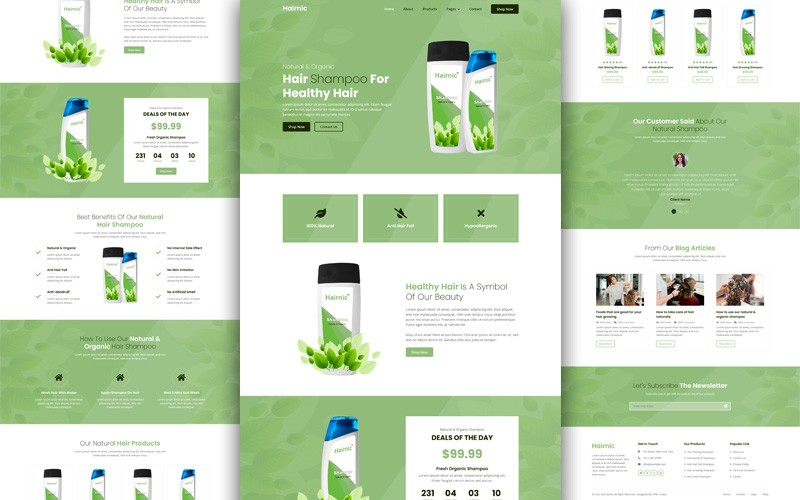
Customizing the product page is a vital task for any merchant looking to stand out in the competitive e-commerce landscape. Magento 2 offers a robust, albeit complex, framework for modifying how product information is presented to the user. By mastering the layout XML system and template overrides, you can transform a standard store into a unique brand experience. This guide provides a deep dive into the technical and creative aspects of tailoring your product pages for maximum impact.
Understanding the Magento 2 product page template structure
Before diving into the code, it is essential to understand the underlying architecture of Magento 2. Unlike simpler platforms, Magento separates logic, presentation, and data using a sophisticated rendering system. This modularity allows for great flexibility but requires a disciplined approach to customization to avoid breaking core functionality.
How Magento 2 renders product pages
The rendering process in Magento 2 is driven by the Page Layout and Page Configuration files. When a user visits a product page, the application identifies the specific request and gathers all relevant XML instructions from the active theme and enabled modules. These instructions define which “blocks” (PHP classes) and “templates” (PHTML files) should be used.
Magento 2 uses a hierarchical system. First, it looks at the base module files, then it checks for overrides in the theme directory. This ensures that the core code remains untouched while allowing developers to define a custom look. The final output is a combination of HTML generated by templates and dynamic data provided by the layout blocks.
Key layout handles and template files involved
In Magento 2, layout handles act as identifiers for specific pages. For the product page, the primary layout handle is catalog_product_view.xml. This file is the “master plan” for the product page. Within this XML file, you will find instructions for the gallery, the add-to-cart button, the price box, and the product tabs.
The physical structure of the page is defined by PHTML files. Some of the most frequently edited files include:
- gallery.phtml: This file controls the product image slider and primary media display. It is the primary template for visual engagement and image navigation on the page.
- addtocart.phtml: This template manages the quantity input field and the purchase button. It is a critical component for conversion and requires careful handling of JavaScript validation.
- description.phtml: This file handles the rendering of the product detail text. It pulls content from the attribute system to display comprehensive information to the end user.
To optimize product pages for SEO and UX, developers must understand how these files interact to ensure that content is not only visually appealing but also easily crawlable by search engine bots.
Theme overrides vs module-based customization
There are two primary ways to customize the product page: through a theme or through a custom module. A theme override is generally preferred for purely visual changes. For example, if you want to move the price above the product name, you would create a catalog_product_view.xml file in your theme directory.
Module-based customization is used when you need to add new logic or data that does not exist in the core. If you are adding a custom “size chart” feature that requires a database table, a module is the correct approach. Regardless of the method, you should never edit files in the vendor directory. Always use the app/design or app/code folders to ensure your changes are not lost during a version update.
Magento 2 product page template: Customize layout and design
Once you have a grasp of the architecture, you can begin the actual customization process. This involves using layout XML to rearrange the page and PHTML templates to change the HTML structure.
Modifying product page layout using layout XML
The layout XML is the most powerful tool in your Magento toolkit. It allows you to restructure the entire page without touching a single line of HTML. Using the <move> instruction, you can relocate elements easily. For instance, if you want to move the “product info stock sku” block into a different container, you simply specify the element name and the destination alias.
Common layout commands include:
- <referenceBlock>: Use this tag to modify the properties or arguments of an existing block. It allows you to change templates or pass new data to the block without rewriting it.
- <referenceContainer>: This command targets structural areas like the sidebar or main content. It is used to add new blocks or change the HTML attributes of the container itself.
- <block>: This tag is used to register and inject a completely new piece of content. You must define a unique name and a specific PHTML template for the block to render.
Adding, removing, and repositioning product page blocks
Removing unnecessary clutter is just as important as adding new features. If you want to hide the “Compare” link or the “Wishlist” button, you can use the remove=”true” attribute within a referenceBlock tag. This is much cleaner than hiding elements with CSS, as it prevents the server from rendering the data entirely, which can slightly improve page load speeds.
When repositioning blocks, keep the user journey in mind. High-converting pages often place the “Add to Cart” button and price “above the fold” (visible without scrolling). By using the before and after attributes in your XML, you can precisely control where an element appears relative to its neighbors.
Customizing product tabs, content sections, and media
The “Product Details” section is usually organized into tabs like “Description,” “Additional Information,” and “Reviews.” You can customize these by targeting the product.info.details block in your XML. You can add a new tab for “Shipping Information” or “Warranty Details” by creating a new block and assigning it to the tabs group.
For media customization, Magento 2 uses a view.xml file located in your theme’s etc folder. This file controls the dimensions of product images, the transition effects of the gallery, and whether thumbnails are displayed vertically or horizontally. Fine-tuning these settings is a crucial part of creating an SEO-First Content Hub Inside Magento stores because it ensures that images are properly sized and optimized for performance.
Styling product pages with theme-level CSS and templates
After the structure is set via XML, you will use CSS (specifically Less in Magento’s default setup) to apply your brand’s visual identity. You should create a _extend.less file or a specific _product-details.less file in your theme. This allows you to change colors, fonts, and spacing without overwriting the entire UI library.
If the existing HTML structure of a block does not meet your needs, you can perform a template override. Copy the original PHTML file from the vendor/magento/module-catalog directory to your theme’s Magento_Catalog/templates folder. Once copied, you can add custom HTML classes, wrap elements in new div tags, or integrate third-party scripts.
Ensuring upgrade-safe and maintainable customizations
The golden rule of Magento development is to remain “upgrade-safe.” This means your customizations should not break when you update the Magento core to a newer version. By using theme overrides and custom modules instead of modifying core files, you ensure that the core code can be swapped out during an update while your custom layers remain intact.
Additionally, always use descriptive names for your custom blocks and containers. Documenting your XML changes with comments helps other developers (or your future self) understand why certain choices were made. This practice is essential for long-term maintenance, especially when using a complex SEO Magento 2 extension that might interact with your layout files.
Best practices for scalable and SEO-friendly product page customization
A beautiful product page is useless if it is slow or cannot be found by search engines. Customization must be balanced with technical performance and search engine optimization.
Avoiding common layout and template customization mistakes
One common mistake is overusing remove=”true” on essential blocks. Sometimes, removing a block that other blocks depend on can cause PHP errors. A safer alternative is often setting display=”false” or simply not calling the block in your custom template.
Another mistake is placing too much logic inside PHTML files. Templates should be kept “dumb,” meaning they should only handle the display of data. Complex calculations or database queries should reside in ViewModel classes or Blocks. This makes your code easier to test and much more scalable as your catalog grows.
Performance and SEO considerations when changing layouts
Every time you add a new block or a large image gallery, you potentially increase the “Time to Interactive” for your users. To maintain high performance:
- Lazy Load Images: This technique ensures that images below the fold do not load until the user scrolls down. It significantly reduces initial page weight and improves loading scores.
- Minimize CSS/JS: Ensure that you only load the assets required for the product page. Avoiding global styles that aren’t used on the product view helps keep the browser responsive.
- Structured Data: When editing templates, be careful not to break the Schema.org microdata. Search engines rely on these tags to display rich results like price, stock, and ratings.
Layout changes should also prioritize text-based content. Search engines cannot “see” images, so ensuring that your product descriptions and specifications are rendered as clean HTML is vital for ranking.
Testing and validating product page changes
Before pushing changes to a live store, rigorous testing is required. You should check your customized product page across different device types, including mobile phones, tablets, and various desktop screen sizes. Magento’s responsive breakpoints should be used to ensure the layout adapts gracefully.
Use tools like Google PageSpeed Insights to verify that your customizations haven’t negatively impacted performance. Additionally, validate your HTML to ensure there are no unclosed tags or syntax errors that could break the page layout in certain browsers. If you are using a custom module for SEO, verify that all meta tags and canonical URLs are rendering correctly after your layout modifications.
Conclusion
Customizing the Magento 2 product page template is a powerful way to enhance your store’s user experience and brand identity. By understanding the relationship between layout XML, PHTML templates, and CSS, you can create a unique shopping environment that is both functional and visually stunning. Remember to always follow best practices regarding upgrade-safety and performance. With a methodical approach to customization, your Magento store will not only look better but will also provide a faster, more SEO-friendly experience for your customers.